.png)
How to add a collage of photos to a message?
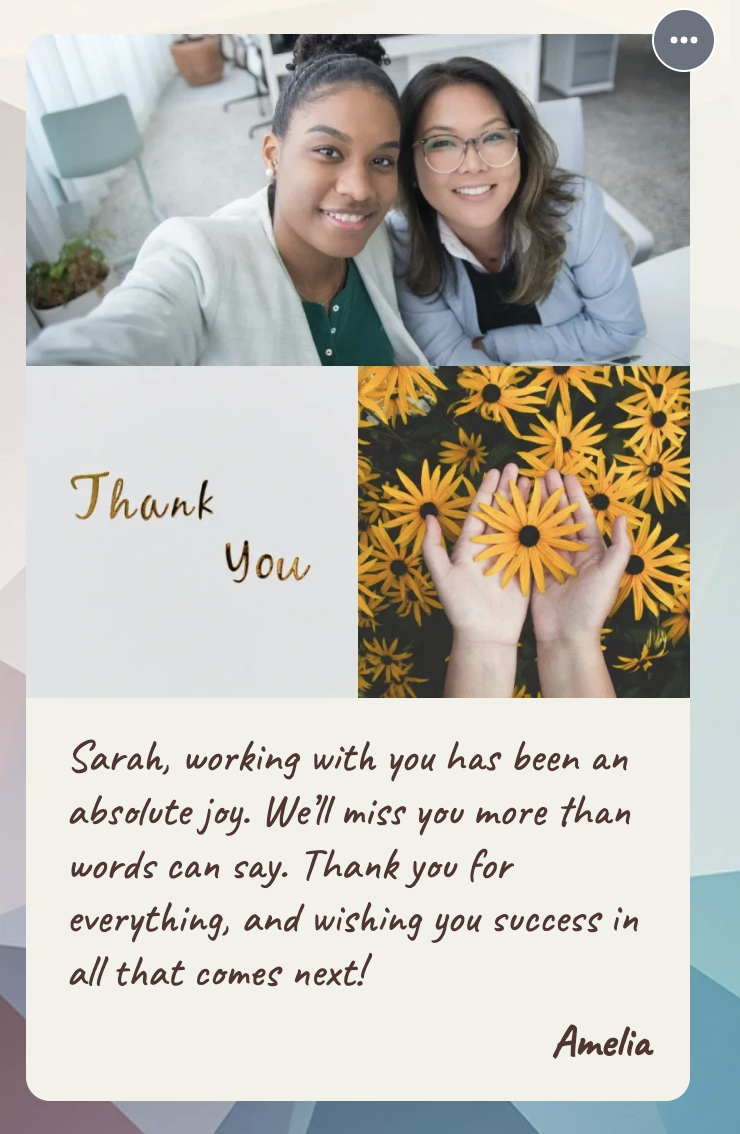
If you want to make your Thankbox message more personal by sharing multiple photos, you can easily add a photo collage.
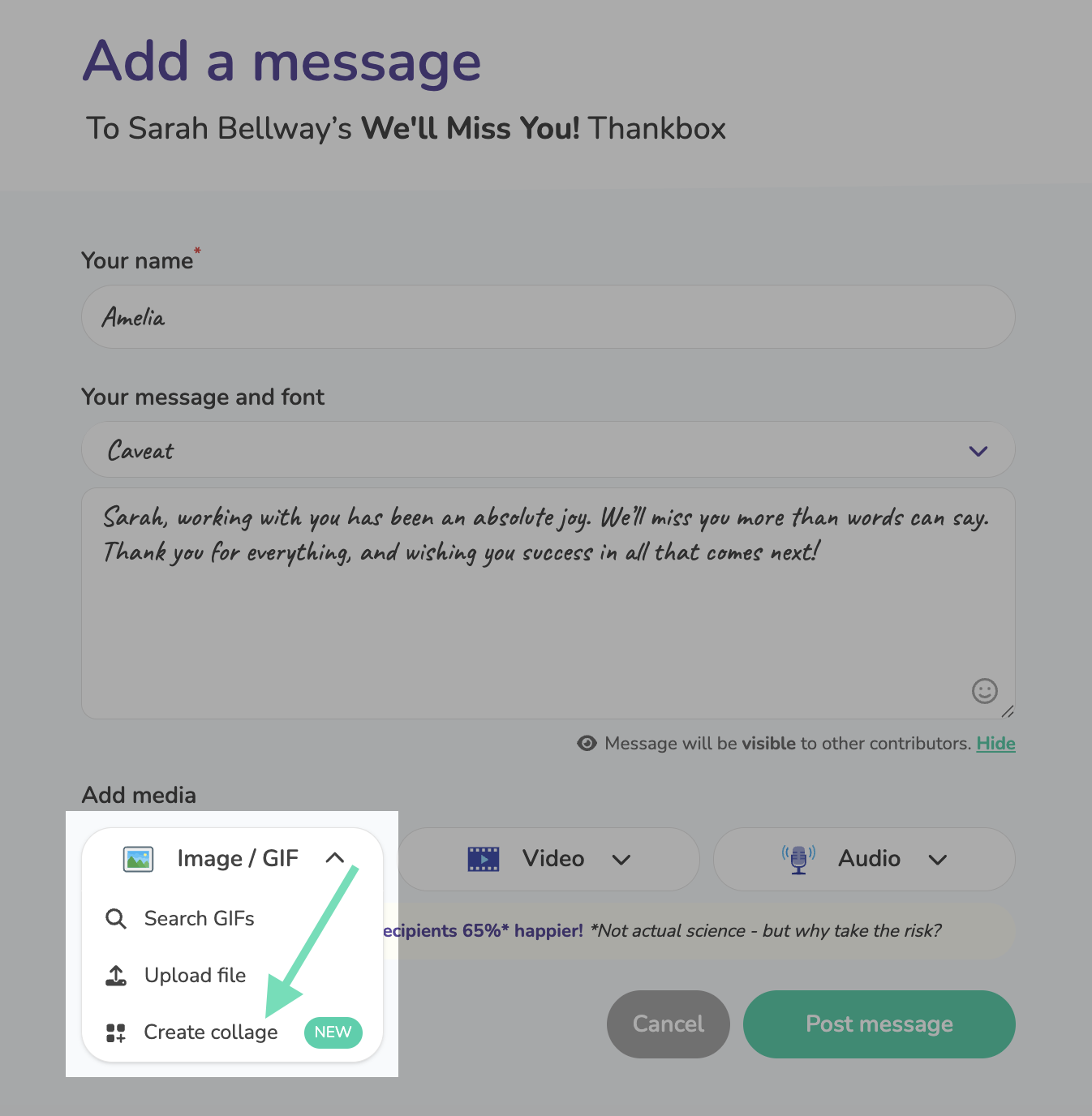
Step 1: Add a photo collage to your message
Click on the Add message button, write your wishes, and click on Create collage, which can be found in the Image/GIF drop-down menu
Step 2: Choose a collage layout
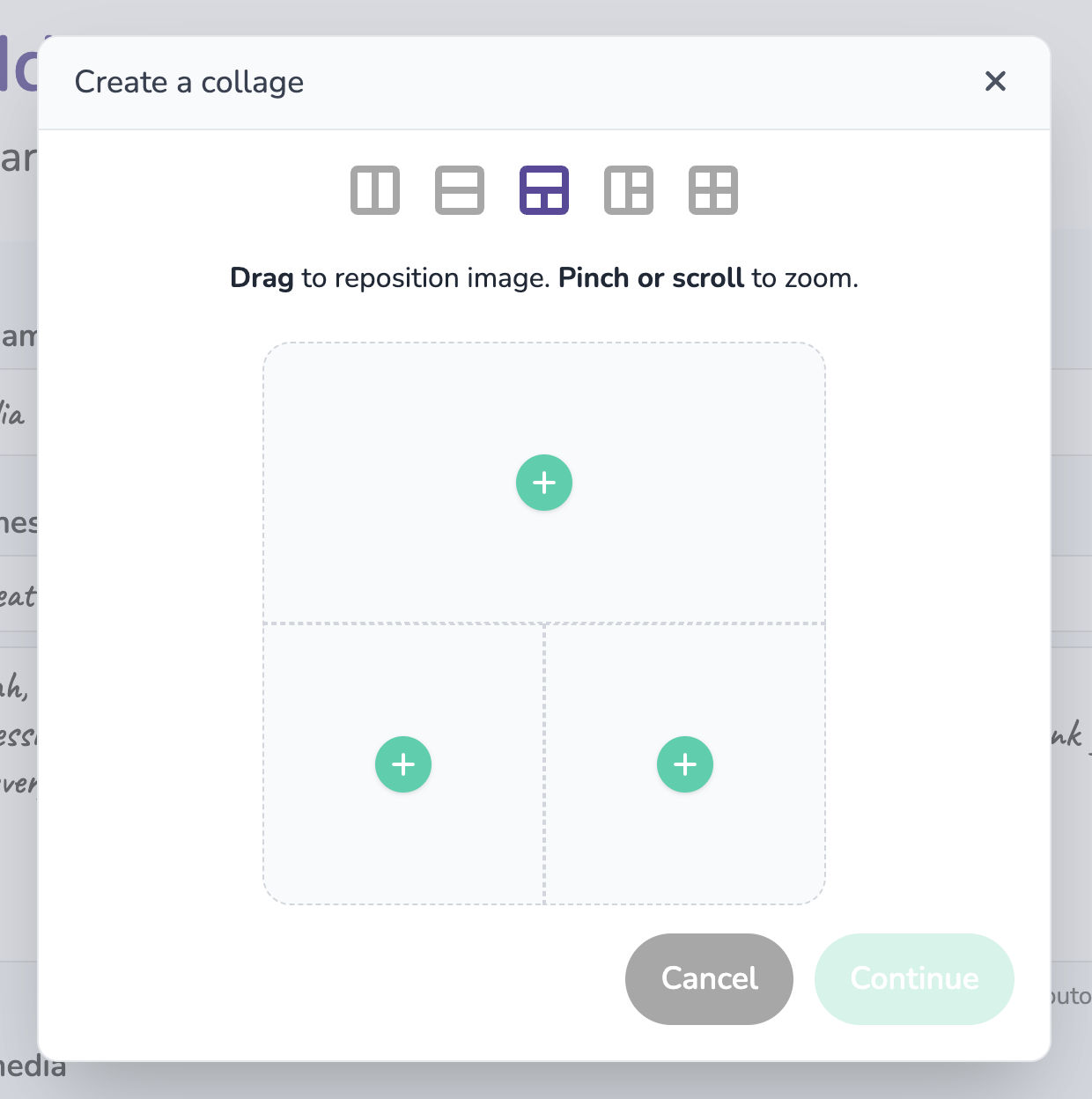
After you select the Create collage option, you will see this screen where you can select the positioning of your photos. There are 5 different options, and you can switch between them by clicking on the small squares at the top.
Step 3: Add your photos
Here comes the fun part! After you've selected the collage layout, you can click on each of the plus (+) signs to open your device library. Select the photos you would like to use individually and arrange them. You can drag to reposition your image, and pinch or scroll to zoom in or out on the photo.
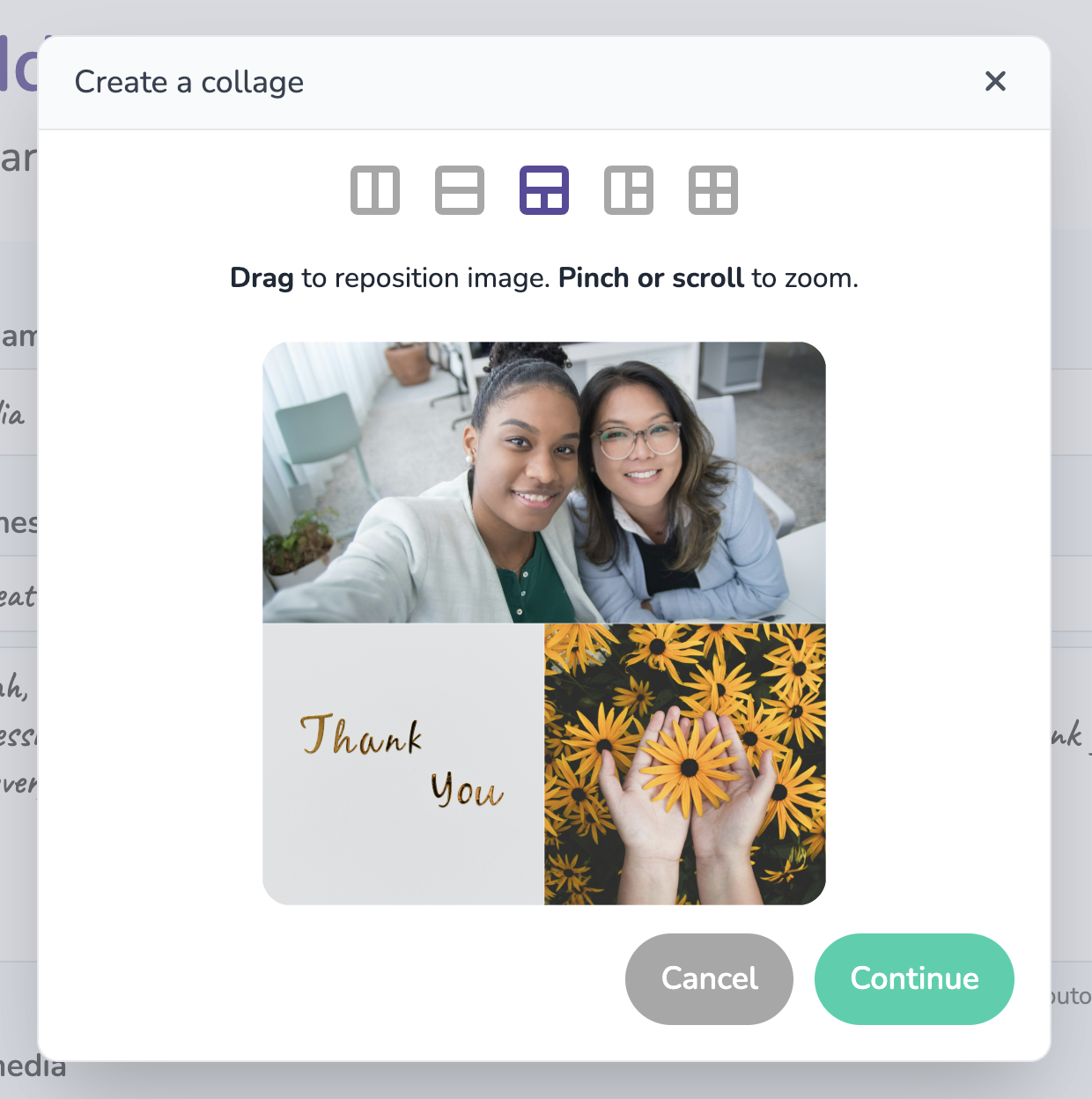
If you want to delete any of the images, hoover over the photo to see the bin icon, and click it to delete the file.
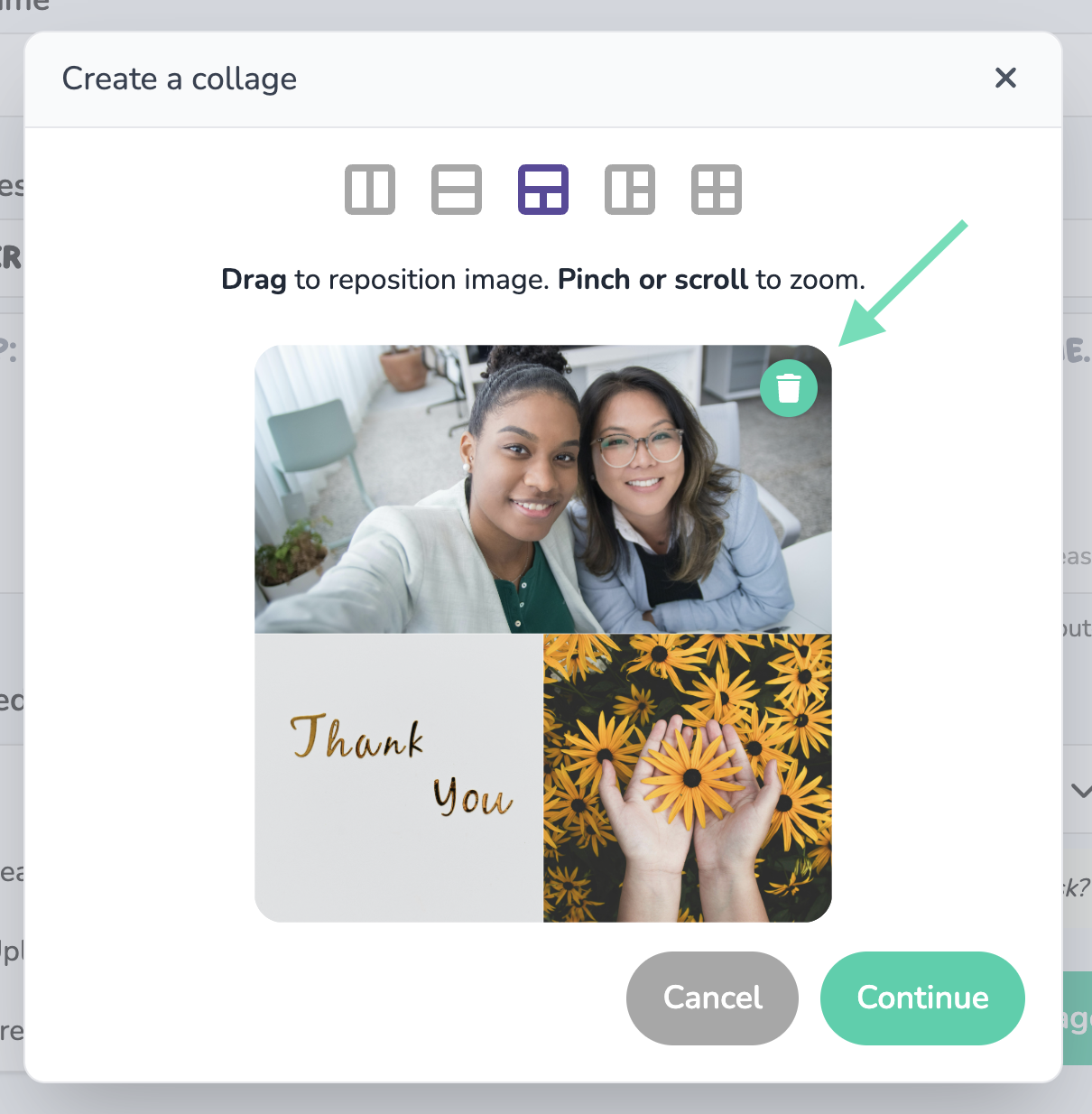
Step 4: Post your message
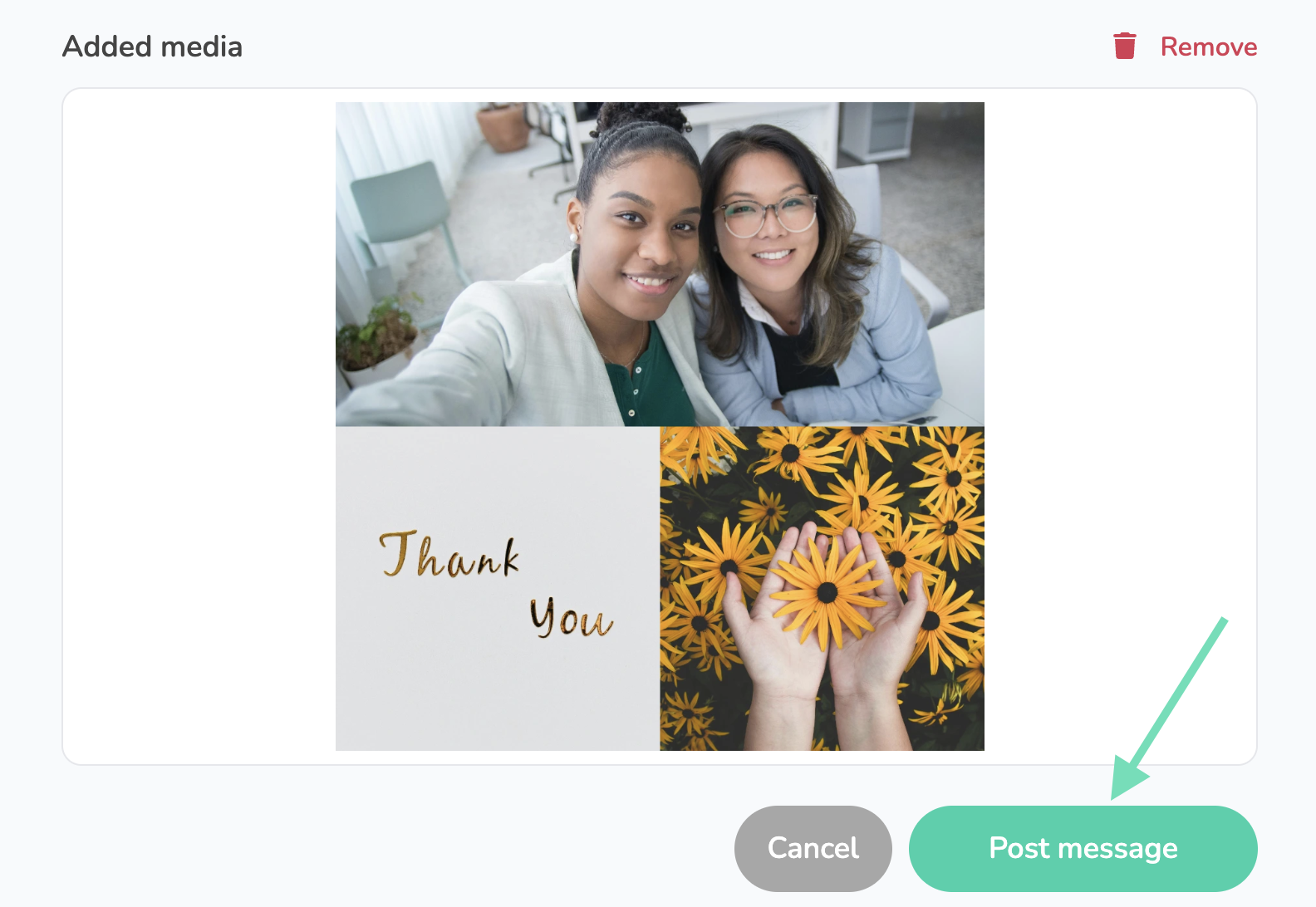
This is how it will show on a Thankbox with a card layout:
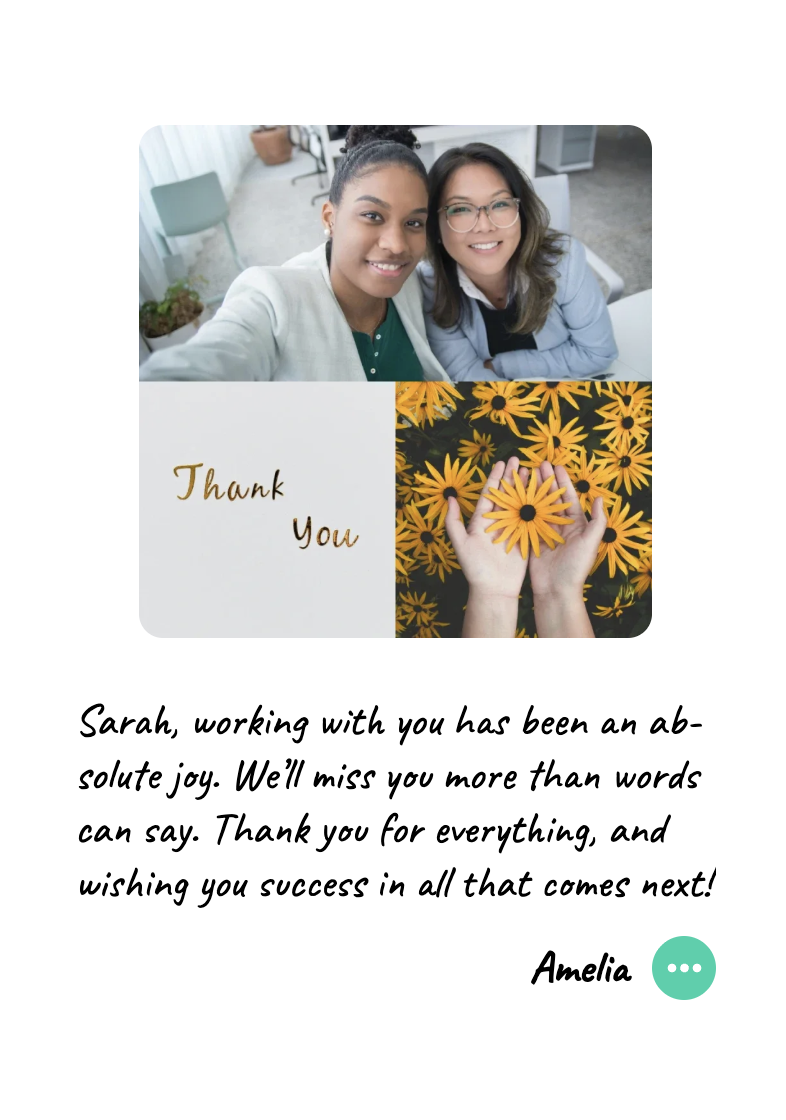
And board layout: